Video editing can be a time-consuming and tedious task, especially if you have to deal with common video problems and errors such as shaky footage, poor lighting, background noise, low resolution, or boring content. Fortunately, there are some AI video editors that can help you fix these issues and create stunning videos in minutes. In this article, we will introduce some of the best AI video editors available online and show you how to use them to improve your videos.
What are AI video editors?
AI video editors are online tools that use artificial intelligence and machine learning to automate and enhance various aspects of video editing. They can analyze your video content, generate scripts, add voiceovers, remove background, cut out silences, add transitions, and more. Some of the benefits of using AI video editors are:
- They can save you time and effort by doing the hard work for you.
- They can improve the quality and creativity of your videos by adding professional effects and features.
- They can help you reach a wider audience by translating your videos into different languages and adding subtitles.
How to use AI video editors to fix common video problems and errors?
There are many AI video editors available online, each with its own features and capabilities. Here are some of the most popular ones and how to use them to fix common video problems and errors.
Kapwing
Kapwing is a powerful and easy-to-use AI video editor that lets you create and edit videos with text prompts, images, voiceovers, and more. You can use Kapwing to fix common video problems and errors such as:
- Shaky footage: You can use the Stabilize tool to smooth out your video and reduce camera shake.
- Poor lighting: You can use the Adjust tool to change the brightness, contrast, saturation, and temperature of your video.
- Background noise: You can use the Remove Background Noise tool to automatically filter out unwanted sounds from your video.
- Low resolution: You can use the Enhance tool to upscale your video and improve its clarity and sharpness.
- Boring content: You can use the AI Video Generator tool to create a summary video about any topic for social media, or the AI B-Roll Generator tool to add relevant and high-quality B-roll footage to your video.
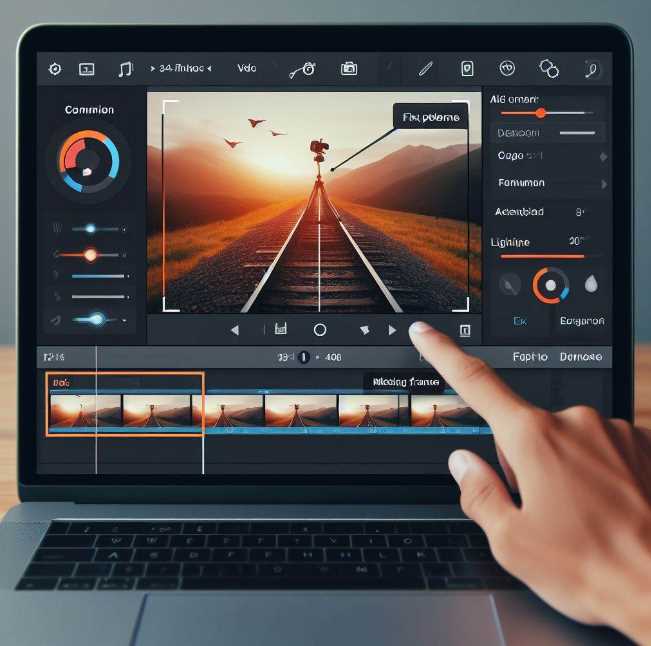
To use Kapwing, you just need to upload your video or paste a URL, choose the tool you want to use, and customize the settings. You can also combine multiple tools to create more complex and creative videos. Once you are done, you can download your video or share it online.
Invideo
Invideo is another popular AI video editor that lets you create and edit videos with text prompts, articles, voiceovers, and more. You can use Invideo to fix common video problems and errors such as:
- Shaky footage: You can use the Stabilize tool to reduce the shakiness of your video and make it smoother.
- Poor lighting: You can use the Color Correction tool to adjust the exposure, contrast, highlights, shadows, and color of your video.
- Background noise: You can use the Audio Enhancer tool to remove background noise, echo, and hum from your video.
- Low resolution: You can use the Video Enhancer tool to increase the resolution and quality of your video.
- Boring content: You can use the AI Video Generator tool to convert any text or article into a video, or the AI Article to Video Generator tool to turn any article into a video summary with music, images, and more.
To use Invideo, you just need to enter your text or article, choose a template, and customize the video. You can also edit your video by giving simple text commands to Invideo AI, such as delete scenes, mute voiceover, change voiceover, and more. Once you are done, you can download your video or share it online.
Veed
Veed is a simple and fast AI video editor that lets you create and edit videos with text to speech, avatars, auto-subtitles, voice translations, and more. You can use Veed to fix common video problems and errors such as:
- Shaky footage: You can use the Stabilize tool to smooth out your video and reduce camera shake.
- Poor lighting: You can use the Filters tool to apply different effects and filters to your video, such as brightness, contrast, saturation, and more.
- Background noise: You can use the Audio Effects tool to remove background noise, add echo, reverb, or distortion to your video.
- Low resolution: You can use the Resize tool to change the resolution and aspect ratio of your video.
- Boring content: You can use the Text to Video tool to create videos from text prompts, or the AI Image Generator tool to create images from text prompts and add them to your video.
To use Veed, you just need to upload your video or paste a URL, choose the tool you want to use, and customize the settings. You can also add subtitles, stickers, emojis, music, and more to your video. Once you are done, you can download your video or share it online.
FAQs
Here are some frequently asked questions about AI video editors and how to use them to fix common video problems and errors.
- Q: How much do AI video editors cost?
- A: Most AI video editors offer free plans with limited features and watermarks, as well as paid plans with more features and no watermarks. The prices vary depending on the tool and the plan you choose, but they are usually affordable and worth the investment.
- Q: How long does it take to edit a video with AI video editors?
- A: It depends on the length and complexity of your video, as well as the tool and the settings you use. However, AI video editors are generally faster and easier than traditional video editors, as they can automate and enhance many aspects of video editing. You can expect to edit a video with AI video editors in minutes or hours, rather than days or weeks.
- Q: How secure are AI video editors?
- A: AI video editors are usually secure and reliable, as they use encryption and privacy policies to protect your data and videos. However, you should always read the terms and conditions of each tool before using it, and be careful about what you upload and share online.
- Q: What are the limitations of AI video editors?
- A: AI video editors are not perfect and they may have some limitations, such as:
- They may not be able to handle very large or complex videos, or videos with poor quality or format.
- They may not be able to understand the context or the meaning of your video, or generate accurate or relevant content for your video.
- They may not be able to replace human creativity or judgment, or match your personal style or preferences.
- Q: How can I improve my video editing skills with AI video editors?
- A: AI video editors can help you improve your video editing skills by:
- Saving you time and effort, so you can focus on the content and the message of your video, rather than the technical details.
- Providing you with inspiration and ideas, so you can learn from the best practices and examples of other videos.
- Giving you feedback and suggestions, so you can improve your video quality and performance.
- Q: How can I choose the best AI video editor for my needs?
- A: There is no one-size-fits-all answer to this question, as different AI video editors have different features and capabilities, and different users have different needs and preferences. However, some of the factors you can consider when choosing an AI video editor are:
- The purpose and the audience of your video, such as whether you want to create a video for education, entertainment, marketing, or something else, and who you want to reach with your video.
- The type and the format of your video, such as whether you want to create a video from text, images, audio, or video, and what resolution, aspect ratio, and file type you want for your video.
- The features and the functions of the AI video editor, such as what tools and options it offers, how easy and intuitive it is to use, and how fast and reliable it is to process your video.
- The cost and the value of the AI video editor, such as how much it charges, what plans and packages it offers, and what benefits and advantages it provides.
- Q: How can I get the most out of AI video editors?
- A: AI video editors can help you create amazing videos, but they are not magic. You still need to put some effort and thought into your video editing process, and follow some best practices, such as:
- Plan your video before you start editing, such as what you want to say, how you want to say it, and what you want to show.
- Review your video after you finish editing, such as whether it meets your goals, whether it conveys your message, and whether it appeals to your audience.
- Test your video before you publish it, such as whether it works on different devices, platforms, and browsers, whether it has any errors or glitches, and whether it complies with any rules or regulations.